Input — paste, type, or drop a file
Output
Highlighted output will appear here.
About this tool
Code Viewer
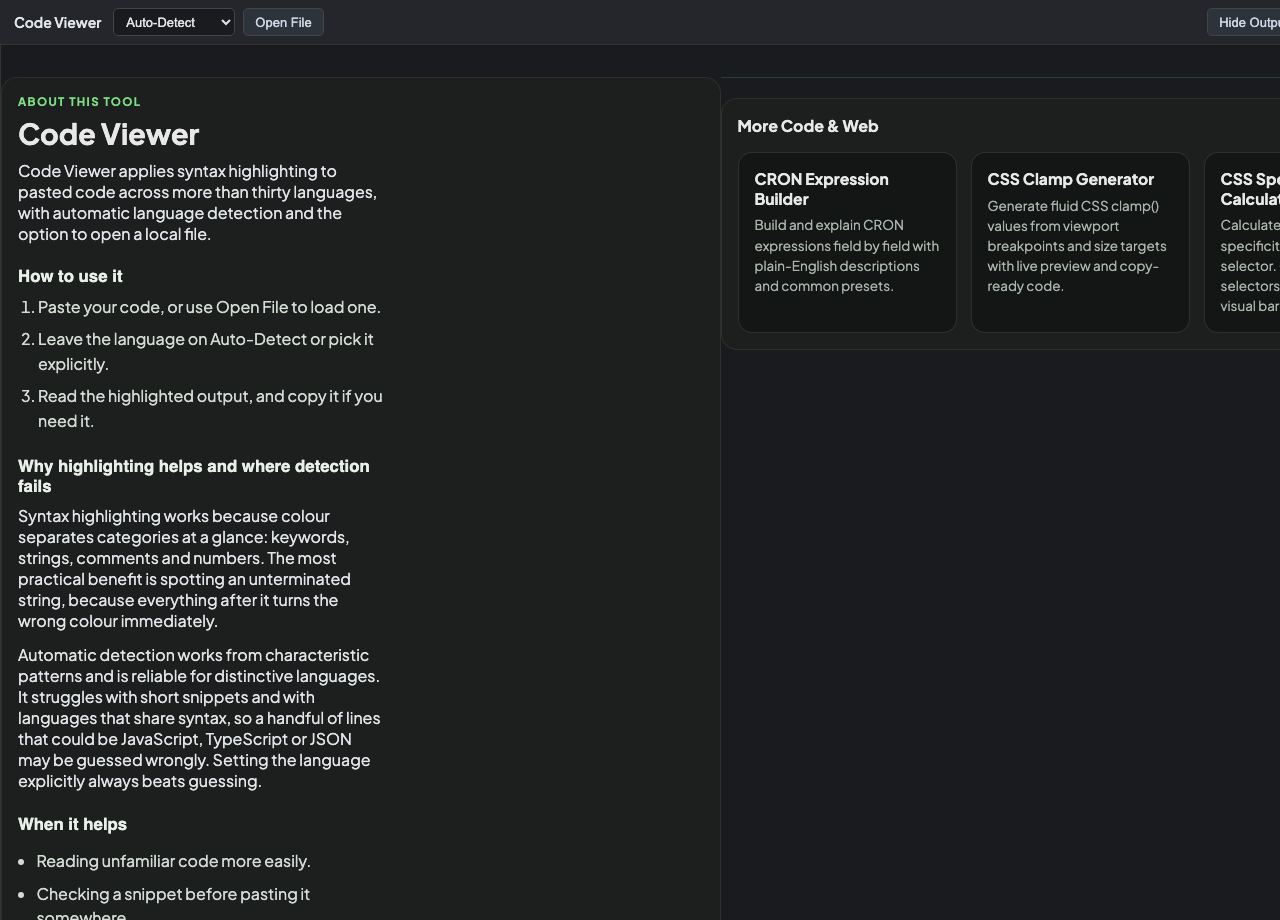
Code Viewer applies syntax highlighting to pasted code across more than thirty languages, with automatic language detection and the option to open a local file.
How to use it
- Paste your code, or use Open File to load one.
- Leave the language on Auto-Detect or pick it explicitly.
- Read the highlighted output, and copy it if you need it.
Why highlighting helps and where detection fails
Syntax highlighting works because colour separates categories at a glance: keywords, strings, comments and numbers. The most practical benefit is spotting an unterminated string, because everything after it turns the wrong colour immediately.
Automatic detection works from characteristic patterns and is reliable for distinctive languages. It struggles with short snippets and with languages that share syntax, so a handful of lines that could be JavaScript, TypeScript or JSON may be guessed wrongly. Setting the language explicitly always beats guessing.
When it helps
- Reading unfamiliar code more easily.
- Checking a snippet before pasting it somewhere.
- Spotting an unclosed string or comment.
- Viewing a code file without opening an editor.
Common mistakes
- Relying on auto-detection for short snippets, where there is not enough signal.
- Assuming highlighting means the code is valid. It is a lexical view, not a compiler.