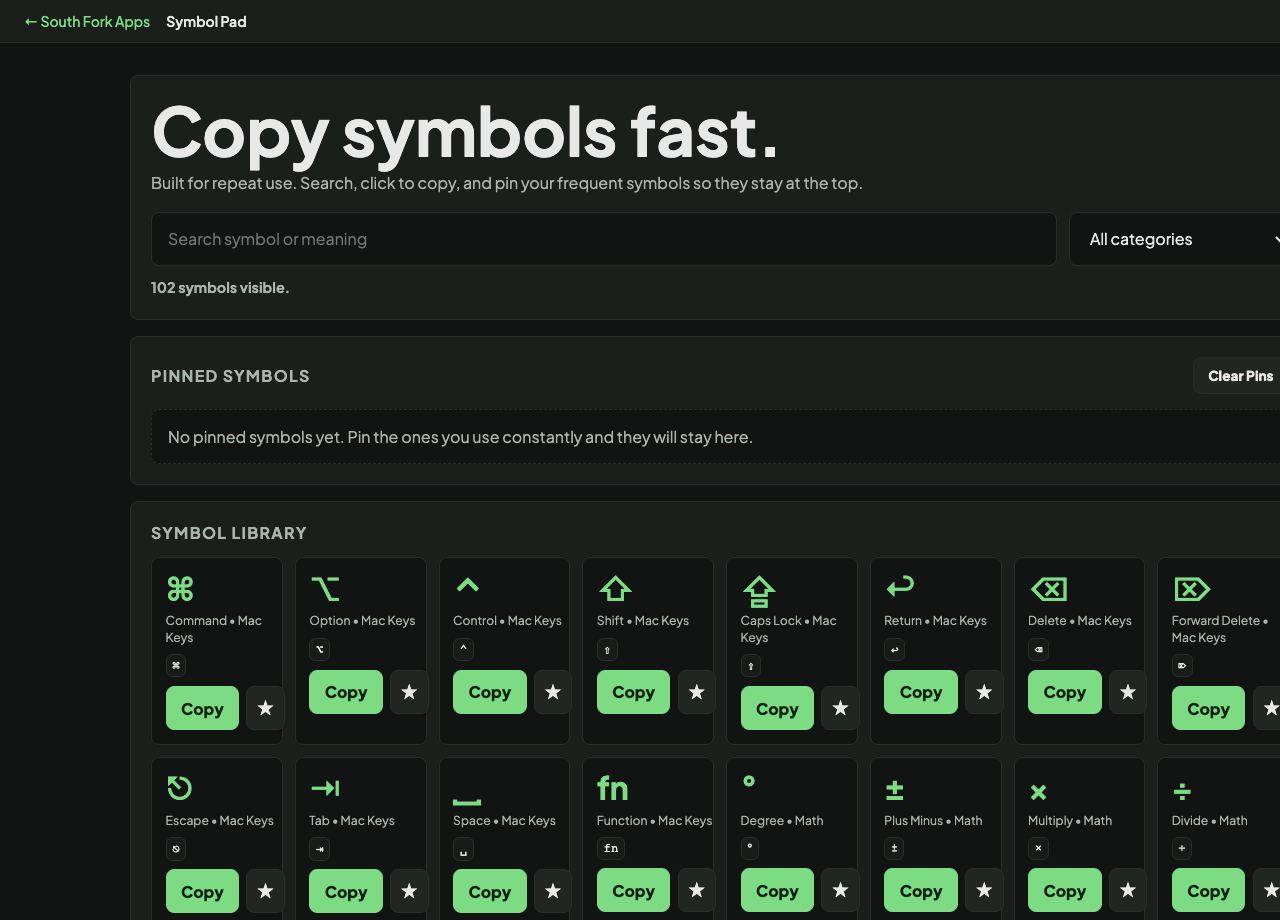
Symbol Pad
Built for repeat use. Search, click to copy, and pin your frequent symbols so they stay at the top.
Ready.
Pinned Symbols
Symbol Library
About this tool
Symbol Pad
Symbol Pad is a click-to-copy keyboard for special characters, symbols, arrows and Unicode, with a pinned favourites section for the ones you use constantly.
How to use it
- Browse or search for the symbol you need.
- Click it to copy it.
- Pin the ones you use often so they stay at the top.
Why this is faster than the alternatives
Every operating system has a character picker, and all of them are slower than you want: a menu, a search field, a scroll, a double click. For a symbol you need several times a day, that friction adds up.
Searching the web for a character and copying it out of a results page works, but drags formatting and invisible characters along with it. A dedicated pad copies the bare character and nothing else, which matters when pasting into code or a form.
When it helps
- Inserting an em dash, an arrow or a degree sign without a keyboard shortcut.
- Copying mathematical or currency symbols.
- Getting a character your keyboard layout does not have.
- Building a set of pinned favourites for recurring work.
Common mistakes
- Pasting symbols into contexts that cannot handle them. Some systems and older fonts still mangle anything outside basic Latin.
- Using a visually similar character in code. A typographic quote or a minus sign that is not the ASCII hyphen will break a program in ways that are very hard to see.