Meeting Time Zone Planner
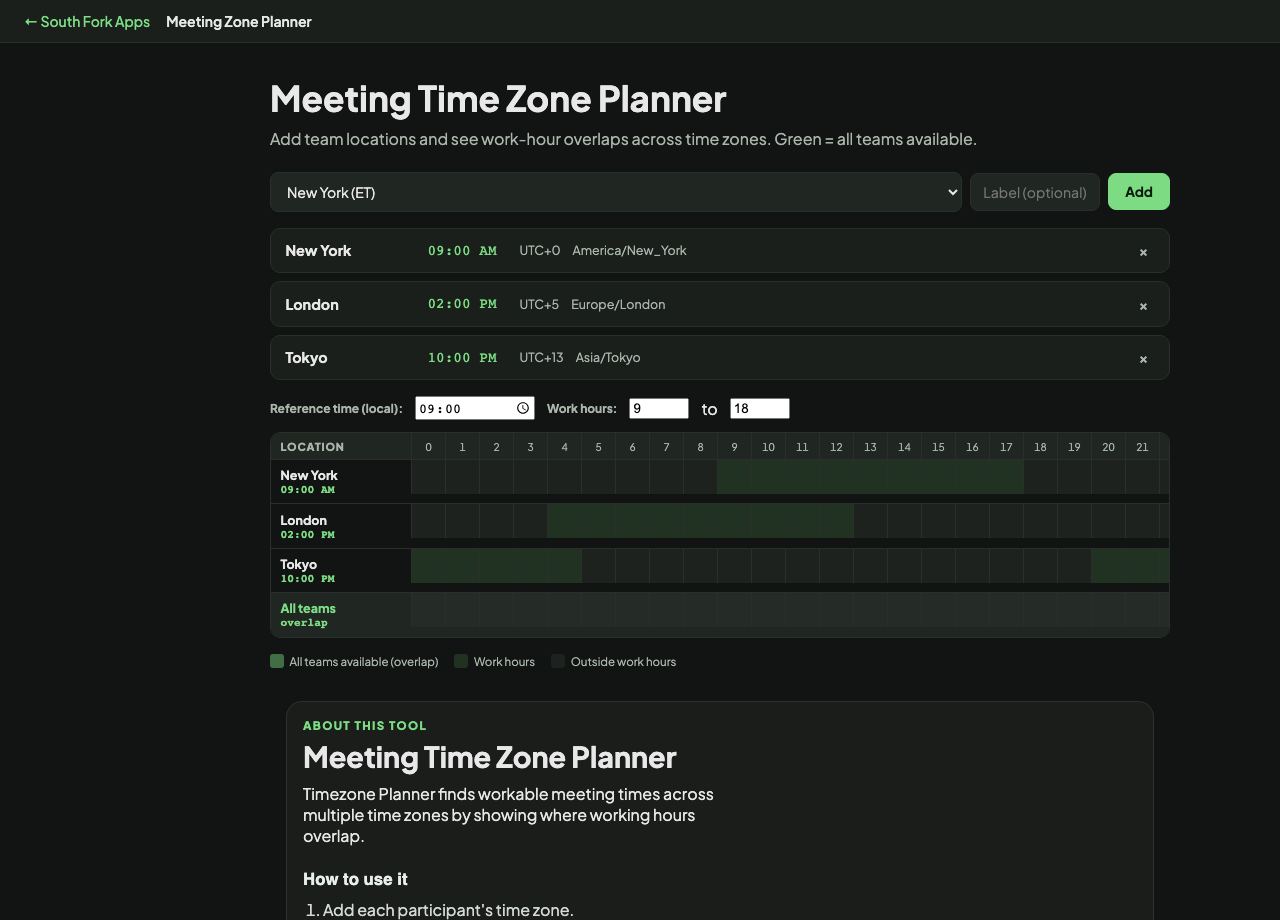
Add team locations and see work-hour overlaps across time zones. Green = all teams available.
to
All teams available (overlap)
Work hours
Outside work hours
About this tool
Meeting Time Zone Planner
Timezone Planner finds workable meeting times across multiple time zones by showing where working hours overlap.
How to use it
- Add each participant's time zone.
- Read the overlapping working hours.
- Pick a slot that is reasonable for everyone.
Why some spreads have no good answer
Standard working hours give roughly an eight-hour window per person. Two zones a few hours apart overlap generously. Beyond about eight hours apart the overlap disappears entirely, and no slot exists that is inside normal hours for everyone.
At that point the honest options are to rotate who takes the inconvenient slot, or to stop meeting synchronously. Repeatedly giving the same person the 6 am call because they are the most junior is a real and common failure.
When it helps
- Scheduling across a distributed team.
- Finding a call time with an overseas client.
- Checking whether a proposed time is unreasonable for someone.
- Planning a recurring meeting that rotates fairly.
Common mistakes
- Forgetting daylight saving. Regions change on different dates, so a fixed overlap can silently shift twice a year.
- Assuming everyone works 9 to 5. Working hours vary by country and by person.
- Scheduling from your own timezone's convenience without checking what it means for the others.